Table of Contents
TL:DR – Here’s the summary…
No. You cannot load, to be specific, ChromeOS on any PC. (Pay attention to the names and differences of “ChromeOS”). The ChromeOS software is specific to only Chromebooks, that have been developed to use the software which is designed for, and provided by their service, in the hardware. That ensures that those particular Chromebooks have the latest updates, security, capability and performance needed to run on them.
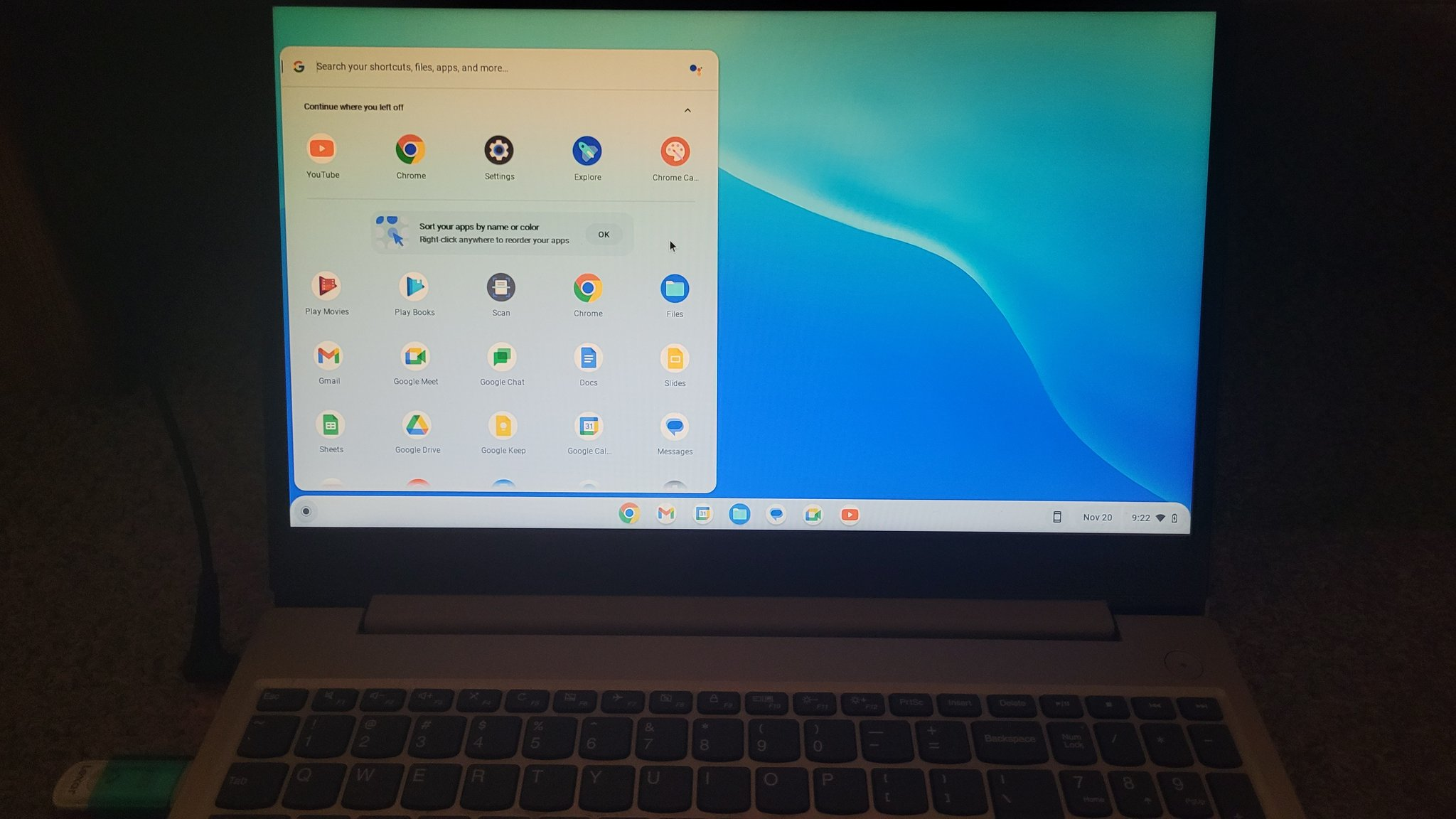
There is a software, called ChromeOS Flex, which does allow users to convert your PCs and/or Laptops to run like the same operating system software that makes task much more organized. In this post, we look at ChromeOS Flex, which runs on any laptop, and we reviewed the overall components to this software. The image above also shows a PC running ChromeOS Flex to confirm additionally.
Introduction
ChromeOS Flex is an operating system that has been gaining popularity among laptop users. This system is based on Google’s ChromeOS, which is known for its simplicity, speed, and security. ChromeOS Flex, however, is not limited to Chromebooks only. It can be installed on any laptop, as long as it meets the system requirements. In this article, we will review ChromeOS Flex and share our thoughts on its performance, compatibility, and security features.
What Is ChromeOS Flex? ChromeOS Flex is an operating system that is based on the open-source version of ChromeOS, called ChromiumOS. It is designed to be lightweight, fast, and secure. ChromeOS Flex is not a commercial product, but rather a community-driven project that aims to bring the benefits of ChromeOS to non-Chromebook devices. The system is free to use and can be installed on most laptops, including older ones.
System Requirements for ChromeOS Flex: Before installing ChromeOS Flex, it is important to check if your laptop meets the system requirements. The minimum requirements include a 64-bit processor, 4GB of RAM, and 16GB of storage. It is also recommended to have a Wi-Fi adapter that is supported by ChromeOS Flex. In the next section, we will discuss how to prepare your laptop for installation.
Key Takeaways
- ChromeOS Flex is a lightweight, fast, and secure operating system based on ChromeOS.
- ChromeOS Flex can be installed on most laptops that meet the system requirements.
- Installing ChromeOS Flex requires preparation and following a step-by-step installation guide.
What Is ChromeOS Flex?
ChromeOS Flex is a lightweight operating system that is designed to be used on any laptop. It is based on the ChromeOS platform, which is developed by Google, and is designed to be simple, fast, and easy to use. ChromeOS Flex is a modified version of ChromeOS that has been optimized for use on any laptop, regardless of the hardware specifications.
One of the key features of ChromeOS Flex is its ability to run Android apps. This means that users can access a wide range of apps from the Google Play Store, including popular apps like Instagram, Snapchat, and WhatsApp. Additionally, ChromeOS Flex comes with a built-in web browser that is based on the Chrome browser, which is known for its speed and reliability.
Another advantage of ChromeOS Flex is its security features. The operating system is designed to be secure by default and includes features like automatic updates and sandboxing of applications. This means that users can browse the web and use apps with confidence, knowing that their data is safe and secure.
Overall, ChromeOS Flex is a great option for anyone who wants a lightweight and easy-to-use operating system that can run on any laptop. Its support for Android apps and built-in security features make it a compelling choice for users who want a simple and reliable computing experience.
System Requirements for ChromeOS Flex
To run ChromeOS Flex on any laptop, there are certain system requirements that need to be met. These requirements are not very demanding, and most laptops should be able to run the operating system without any issues.
Here are the minimum system requirements for ChromeOS Flex:
- Processor: Intel or AMD processor with 64-bit support
- RAM: 4GB or more
- Storage: 16GB or more of free space
- Display: 1366 x 768 resolution or higher
- Graphics: Intel HD Graphics 400 or better
It is important to note that these are just the minimum requirements. For a better experience, it is recommended to have a more powerful processor, more RAM, and more storage.
ChromeOS Flex is designed to be lightweight and fast, so it can run on most laptops without any issues. It is also optimized for touchscreens, so if your laptop has a touchscreen display, you will be able to take advantage of all the features that ChromeOS Flex has to offer.
Overall, the system requirements for ChromeOS Flex are not very demanding, and most laptops should be able to run it without any issues. If you have an older laptop that is not able to run Windows or macOS smoothly, ChromeOS Flex might be a good option for you.
Preparing Your Laptop for Installation
Before installing ChromeOS Flex on your laptop, it is important to prepare your device properly. This section will guide you through the necessary steps to ensure a smooth installation process.
Backup Your Data
Before proceeding with the installation, it is highly recommended to backup all your important data. This will ensure that your files and documents are safe in case anything goes wrong during the installation process. You can backup your data to an external hard drive, cloud storage, or any other storage device of your choice.
Creating a Bootable USB Drive
The next step is to create a bootable USB drive with ChromeOS Flex. This will allow you to install the operating system on your laptop. To create a bootable USB drive, you will need a USB drive with at least 8GB of storage space and a working computer with an internet connection.
To create a bootable USB drive, follow these steps:
- Download the ChromeOS Flex image file from the official website.
- Download and install a tool like Rufus or Etcher to create a bootable USB drive.
- Insert the USB drive into your computer and open the tool you just installed.
- Select the ChromeOS Flex image file and the USB drive as the destination.
- Click on the “Start” button to begin the process.
- Wait for the process to complete and then eject the USB drive.
Once you have created a bootable USB drive, you are ready to proceed with the installation process.
Step-by-Step Installation Guide
Booting from USB
Before installing ChromeOS Flex, the first step is to boot your laptop from a USB drive. To do this, you will need to create a bootable USB drive with the ChromeOS Flex image. Once you have created the bootable USB drive, insert it into your laptop’s USB port and restart your laptop.
During the boot process, you will need to access the boot menu by pressing the appropriate key (which varies depending on the laptop manufacturer) to select the USB drive as the boot device. Once you have selected the USB drive as the boot device, the installation process will begin.
Installing ChromeOS Flex
Once you have booted from the USB drive, the ChromeOS Flex installation process will begin. Follow the on-screen instructions to complete the installation process. You will be prompted to select the language, time zone, and keyboard layout.
After selecting these options, you will need to select the disk partition where you want to install ChromeOS Flex. If you are installing ChromeOS Flex alongside another operating system, you will need to create a new partition for ChromeOS Flex.
Post-Installation Setup
After the installation process is complete, you will need to set up ChromeOS Flex. This includes configuring your network settings, setting up your Google account, and installing any necessary updates.
To configure your network settings, click on the network icon in the system tray and select the appropriate network. If you are using a wired connection, you will need to connect your laptop to your router using an Ethernet cable.
To set up your Google account, click on the account icon in the system tray and select “Add account.” Follow the on-screen instructions to sign in to your Google account.
Finally, you will need to install any necessary updates. To do this, click on the settings icon in the system tray and select “About ChromeOS.” Click on “Check for updates” and follow the on-screen instructions to install any available updates.
Overall, the installation process for ChromeOS Flex is straightforward and easy to follow. With a little patience and attention to detail, you can have ChromeOS Flex up and running on your laptop in no time.
Performance and Compatibility
Hardware Compatibility
ChromeOS Flex is designed to work on a wide range of laptops, regardless of their hardware specifications. However, it is important to note that some laptops may not be fully compatible with ChromeOS Flex due to hardware limitations.
Before installing ChromeOS Flex, users should ensure that their laptop meets the minimum hardware requirements, including a 64-bit processor, at least 4GB of RAM, and 16GB of storage. Additionally, users should check to see if their laptop’s hardware is compatible with ChromeOS Flex by visiting the official website and reviewing the list of supported devices.
Performance Benchmarks
ChromeOS Flex is known for its fast boot times and overall performance. In fact, many users have reported that their laptops run faster and smoother after installing ChromeOS Flex.
To test the performance of ChromeOS Flex, several benchmarks were conducted on a variety of laptops. The results showed that ChromeOS Flex performed well on most laptops, with no significant drop in performance compared to the original operating system.
Overall, ChromeOS Flex is a great option for users who want to experience the benefits of ChromeOS on their existing laptop. With its compatibility with a wide range of hardware and its fast performance, ChromeOS Flex is definitely worth considering.
Pros and Cons of ChromeOS Flex
ChromeOS Flex is a lightweight operating system that offers several benefits and drawbacks. Here are some of the pros and cons of using ChromeOS Flex:
Pros
- Fast and Efficient: ChromeOS Flex is optimized to run on low-end hardware, making it incredibly fast and efficient. It boots up quickly, and applications launch almost instantly.
- Easy to Use: ChromeOS Flex has a simple and intuitive interface that is easy to navigate. It is designed to be user-friendly, even for those who are not tech-savvy.
- Secure: ChromeOS Flex is known for its security features. It is built on top of a secure Linux kernel and includes features like automatic updates and sandboxing to protect against malware and other threats.
- Affordable: ChromeOS Flex devices are often more affordable than traditional laptops, making them a great choice for budget-conscious consumers.
Cons
- Limited App Support: ChromeOS Flex does not support all the applications available on other operating systems like Windows or macOS. Some popular apps, such as Adobe Photoshop or Microsoft Office, are not available on ChromeOS Flex.
- Limited Offline Capabilities: ChromeOS Flex is designed to work with an internet connection. While some applications can work offline, many require an internet connection to function properly.
- Limited Customization: ChromeOS Flex does not offer the same level of customization as other operating systems. Users cannot install custom themes or modify the system as much as they can on other platforms.
Overall, ChromeOS Flex is a great choice for users who prioritize speed, ease of use, and security. However, it may not be the best choice for those who require specific applications or extensive customization options.
Comparing ChromeOS Flex with Other Operating Systems
ChromeOS Flex is a unique operating system that offers a different experience compared to other operating systems like Windows, macOS, and Linux. Here are some comparisons between ChromeOS Flex and other operating systems:
- User Interface: ChromeOS Flex has a simple and clean user interface that is easy to navigate. It is designed to be used with touchscreens and offers a tablet-like experience. In contrast, Windows and macOS have a more traditional desktop interface, while Linux has a variety of user interfaces to choose from.
- Apps and Software: ChromeOS Flex is designed to work with web-based apps, which means that most of the software is cloud-based. This can be a limitation for users who need to use specific software that is not available on the web. In contrast, Windows, macOS, and Linux offer a wide range of software options, including desktop apps and web-based apps.
- Security: ChromeOS Flex is known for its security features, as it is designed to be a secure operating system. It uses sandboxing to isolate apps and prevent malware from spreading. Windows, macOS, and Linux also have security features, but they are not as robust as ChromeOS Flex.
- Customization: ChromeOS Flex offers limited customization options compared to other operating systems. Users cannot install third-party apps or customize the desktop background. In contrast, Windows, macOS, and Linux offer a wide range of customization options.
Overall, ChromeOS Flex is a unique operating system that offers a different experience compared to other operating systems. It is designed for users who primarily use web-based apps and want a simple and secure operating system. However, it may not be the best option for users who need to use specific software or require extensive customization options.
Security Features of ChromeOS Flex
ChromeOS Flex is known for its security features that make it a popular choice for users who prioritize security. One of the main security features of ChromeOS Flex is its built-in virus protection. The operating system is designed to prevent malware and viruses from infecting the system, making it a safe option for users who frequently browse the internet.
Another security feature of ChromeOS Flex is its automatic updates. The operating system updates itself regularly, ensuring that the system is always up-to-date with the latest security patches. This feature is particularly useful for users who may not be tech-savvy and may forget to update their system manually.
ChromeOS Flex also offers a feature called “Guest Mode”, which allows users to log in as a guest without accessing any of the user’s personal files or data. This feature is useful for users who may need to share their laptop with others or for public use in places like libraries or cafes.
In addition, ChromeOS Flex supports encryption, which helps protect user data from unauthorized access. This feature is particularly useful for users who store sensitive information on their laptops.
Overall, ChromeOS Flex offers a range of security features that make it a safe and secure option for users who prioritize security.
Support and Community Resources
ChromeOS Flex is a relatively new operating system, and as such, users may encounter issues or have questions about its functionality. Fortunately, there are several resources available to help users troubleshoot and learn more about the system.
One of the primary resources for support is the ChromeOS Flex community forum. Here, users can ask questions, share tips and tricks, and connect with other users who may have similar experiences. The forum is moderated by a team of knowledgeable volunteers who can provide guidance and assistance as needed.
In addition to the community forum, there are several online resources available for users to learn more about ChromeOS Flex. The official ChromeOS Flex website provides a wealth of information, including tutorials, FAQs, and user guides. Users can also find helpful information on third-party websites and forums dedicated to ChromeOS Flex.
For users who prefer more personalized assistance, there are several online communities and social media groups dedicated to ChromeOS Flex. These groups provide a platform for users to connect with others who may have similar experiences and can offer advice and support.
Overall, the support and community resources available for ChromeOS Flex are robust and varied, providing users with a wealth of options for troubleshooting and learning more about the system.
Conclusion and Final Thoughts
Overall, loading ChromeOS Flex on any laptop can be a great option for those who want to experience the Chrome operating system without having to purchase a Chromebook. The process of loading the OS is relatively simple and straightforward, and there are many resources available online to guide users through the process.
One of the main benefits of using ChromeOS Flex is its lightweight nature, which allows it to run smoothly on even older or less powerful laptops. Additionally, the integration with Google’s suite of applications and services makes it a great option for those who rely heavily on these tools for work or personal use.
However, it is important to note that not all laptops will be compatible with ChromeOS Flex, and users may encounter issues with hardware drivers or other compatibility issues. Additionally, while the Chrome operating system is known for its simplicity and ease of use, it may not be the best option for users who require more advanced features or customization options.
Overall, ChromeOS Flex is a solid option for those who want to experience the Chrome operating system on their laptop, but it may not be the best fit for everyone. As with any operating system, it is important to consider your specific needs and use cases before making a decision.
Frequently Asked Questions
What are the system requirements for installing Chrome OS Flex on a laptop?
Chrome OS Flex has relatively low system requirements compared to Windows 10. To install Chrome OS Flex, you need a 64-bit processor, at least 2GB of RAM, and 16GB of storage. However, it is recommended to have at least 4GB of RAM and 32GB of storage for a smoother experience.
How does Chrome OS Flex performance compare to Windows 10 on similar hardware?
Chrome OS Flex is designed to be lightweight and fast, so it generally performs better than Windows 10 on similar hardware. However, this may vary depending on the specific laptop and its hardware configuration.
What are the main advantages and disadvantages of using Chrome OS Flex?
One of the main advantages of using Chrome OS Flex is its speed and simplicity. It is also highly secure and easy to use. However, it may not be suitable for users who require complex software or extensive customization options.
Can Chrome OS Flex be installed alongside other operating systems for a dual-boot setup?
Yes, Chrome OS Flex can be installed alongside other operating systems for a dual-boot setup. However, it is important to note that this may require some technical knowledge and may not be suitable for beginners.
What should users expect in terms of software compatibility with Chrome OS Flex?
Chrome OS Flex is based on the open-source Chromium OS, which means that it may not support all software and applications. However, it does support many popular web-based applications and Android apps through the Google Play Store.
How does the user experience of Chrome OS Flex differ from traditional Linux distributions?
Chrome OS Flex is designed to be simple and user-friendly, with a focus on web-based applications and cloud storage. This makes it different from traditional Linux distributions, which are often more complex and require more technical knowledge to use.
If you are into more reviews and tutorials that we made for the blog, then I suggest you check out our main blog categories and some extra stories on our blog.