Table of Contents
ProBuilder is a powerful tool for building virtual worlds and structures in Unity. It is a unique hybrid of 3D modeling and level design tools that is optimized for building simple geometry but is also capable of detailed editing and UV unwrapping. With the use of the editor, users can quickly prototype structures, complex terrain features, vehicles, and weapons, or make custom collision geometry, trigger zones, or nav meshes.
ProBuilder is easy to use and can be installed quickly from the Unity Package Manager. Once installed, users can start building right away, with access to a variety of features including UV editing, vertex colors, parametric shapes, and texture blending. ProBuilder also includes a model export feature, making it easy to tweak levels in any external 3D modeling software. Whether you are a beginner or an experienced developer, ProBuilder is an essential tool for creating immersive virtual experiences in Unity.
Downloading ProBuilder
ProBuilder is a powerful tool that allows Unity game developers to create 3D models and levels quickly and easily. To use ProBuilder, you must first download and install it. Here’s how:
- Open Unity and go to the Package Manager (Window > Package Manager).
- In the search bar, type “ProBuilder” and press Enter.
- Select the ProBuilder package from the search results.
- Click the Install button to download and install ProBuilder.
Once the installation is complete, you can start using the editor to create your 3D models and levels.
ProBuilder is available in both the free and paid versions of Unity, and it is compatible with all major operating systems, including Windows, macOS, and Linux. It is also compatible with Unity’s High Definition Render Pipeline (HDRP) and Universal Render Pipeline (URP), which allows you to create stunning visual effects for your games.
One of the great things about ProBuilder is that it is very easy to use, even for beginners. The tool comes with a variety of pre-built shapes and objects that you can use to create your models and levels, and it also allows you to import your own 3D models from other software programs.
Overall, ProBuilder is an essential tool for any Unity game developer who wants to create high-quality 3D models and levels quickly and easily. With its intuitive interface and powerful features, This feature is sure to become a staple in your game development toolkit.
Installing ProBuilder
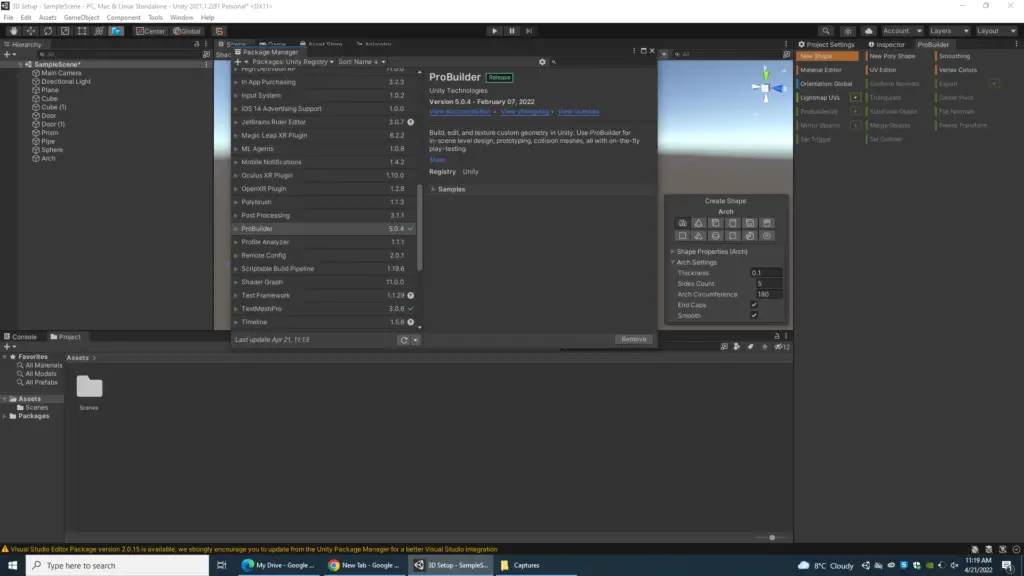
ProBuilder is a powerful tool for creating and editing 3D objects in Unity. It is a free package that can be easily installed using the Package Manager in Unity. Here are the steps to install ProBuilder:
- Open Unity and navigate to the Package Manager by going to Window > Package Manager.
- In the search bar, type “ProBuilder” and select the ProBuilder package from the list of packages.
- Click on the “Install” button to install the package.
Once the installation is complete, ProBuilder can be accessed by going to Tools > ProBuilder in the Unity Editor.
It is important to note that ProBuilder requires Unity version 2018.3 or higher to run. If you are using an older version of Unity, you will need to update it before you can install and use ProBuilder.
In addition, ProBuilder is compatible with Windows and macOS operating systems. If you are using a different operating system, you may need to check the system requirements to ensure that ProBuilder will work properly.
Overall, installing ProBuilder is a simple and straightforward process that can be completed in just a few steps. Once installed, users can take advantage of the many features and tools that ProBuilder has to offer to create and edit 3D objects quickly and efficiently.
Getting Started with ProBuilder Unity
Installing ProBuilder
To use ProBuilder, it must first be installed in Unity. To do this, navigate to the Package Manager in Unity and search for “ProBuilder”. From there, install the package and it will be ready to use.
Creating a New ProBuilder Object
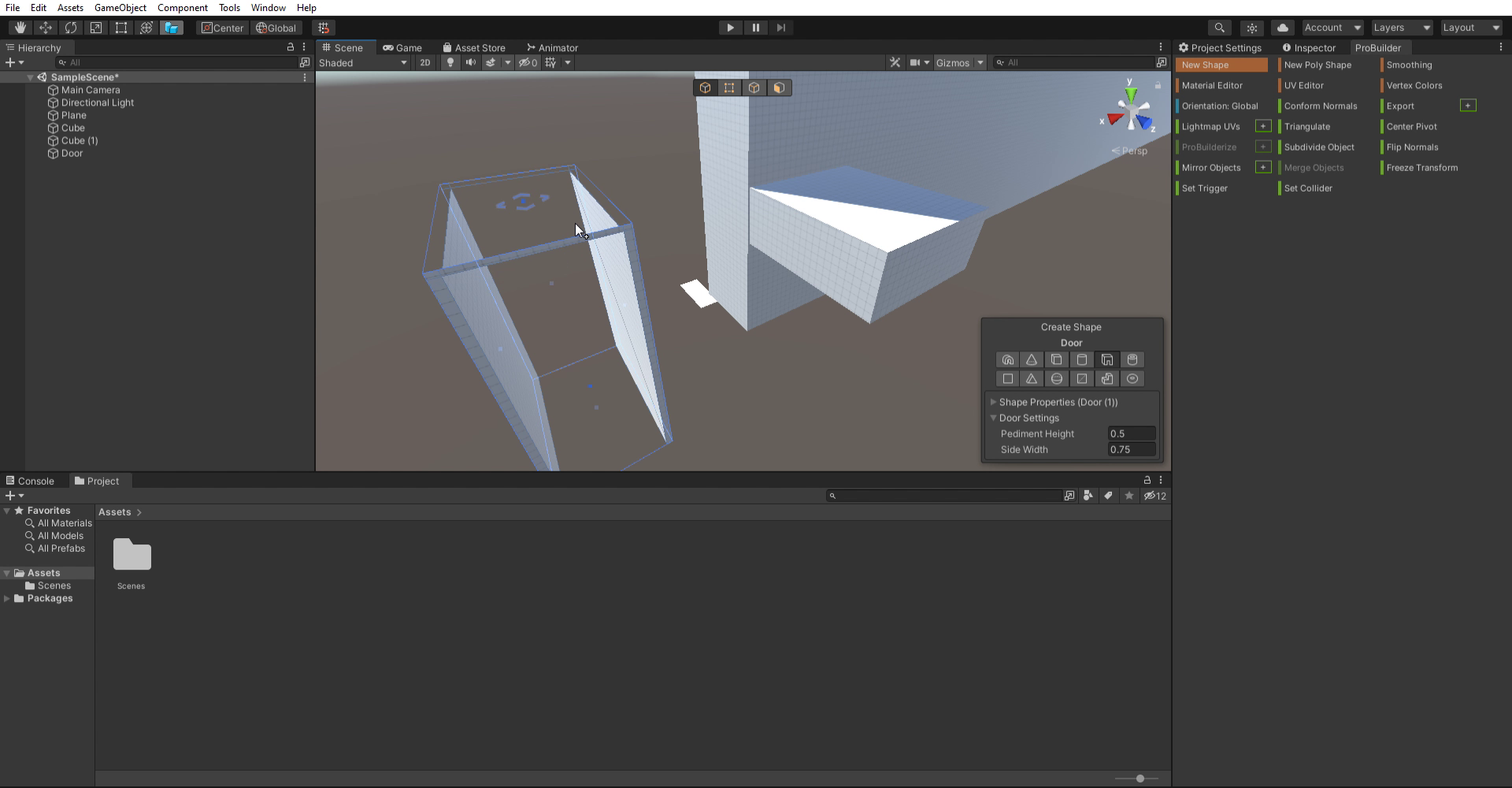
Once ProBuilder is installed, creating a new ProBuilder object is simple. In the Unity Editor, navigate to the GameObject menu and select “3D Object”. From there, select “ProBuilder Shape” and choose the shape you want to create. This will create a new ProBuilder object in the scene.
Basic ProBuilder Tools
ProBuilder provides a variety of tools to create and edit 3D shapes. Some of the basic tools include:
- Extrude: This tool allows you to extrude a face or edge of a shape, creating new geometry.
- Merge: This tool allows you to merge two or more vertices together, simplifying the geometry of a shape.
- Bevel: This tool allows you to create a bevel on the edge of a shape, adding detail and complexity.
- Subdivide: This tool allows you to subdivide the faces of a shape, creating more detail and smoother surfaces.
These are just a few of the basic tools available in ProBuilder. As you become more familiar with the software, you’ll discover a variety of other tools and features that can be used to create complex 3D shapes.
In conclusion, ProBuilder is a powerful tool for creating and editing 3D shapes in Unity. By following these simple steps, you can quickly get started decently quick and begin creating your own 3D objects.
Building with ProBuilder Unity
ProBuilder is a powerful tool that allows users to create custom geometry within Unity. It is a unique hybrid of 3D modeling and level design tools, optimized for building simple geometry but capable of detailed editing and UV unwrapping too. In this section, we will explore how to build objects with ProBuilder, including simple objects, advanced techniques, and texturing and materials.
Building a Simple Object
Building a simple object using the Tool is easy. First, create a new object in your scene. Then, select the object and open the ProBuilder window. From here, you can use the various tools to create the object. For example, to create a cube, select the cube tool and drag a rectangle on the screen. You can then use the various handles to adjust the size and shape of the cube.
Advanced ProBuilder Techniques
ProBuilder offers many advanced techniques for building objects. For example, you can use the vertex editing tools to adjust the vertices of an object, creating complex shapes and curves. You can also use the UV editing tools to create custom textures for your objects. Additionally, the editor offers parametric shapes, which allow you to create complex shapes such as arches, cylinders, and spheres.
Texturing and Materials
Once you have built your object, you can apply textures and materials to it. The editor offers a variety of tools for texturing and materials, including the ability to import custom textures and materials. You can also use the UV editing tools to adjust the mapping of textures to your object.
Overall, ProBuilder is a powerful tool for building custom geometry within Unity. With its advanced techniques and texturing and materials tools, users can create complex objects with ease.
Conclusion of the whole story?
ProBuilder is truly, a powerful tool for building, editing, and texturing custom geometry in Unity. It is a unique hybrid of 3D modeling and level design tools, optimized for building simple geometry but capable of detailed editing and UV unwrapping too. Users can create and edit levels, prototyping, collision meshes, and more, all with on-the-fly play-testing.
ProBuilder’s advanced features include UV editing, vertex colors, parametric shapes, and texture blending. It also includes a model export feature, making it easy to tweak levels in any external 3D modeling software. ProBuilder is an essential tool for game designers, level designers, and developers who want to create high-quality, custom geometry in Unity quickly.
After having a look at this opening guide, you will learn how to use ProBuilder to create custom geometry in Unity. The guide has cover the basics, including how to create shapes, edit vertices, and apply textures. It will also cover more advanced topics, such as creating complex structures, using parametric shapes, and exporting models. In the end, readers will have a solid understanding of how to use the software to create custom geometry in Unity, making their game development process more efficient and effective.
Overall, ProBuilder is a useful tool for Unity developers who want to create custom geometry within the engine. It offers a range of features that make it easy to use and learn, and its flexibility makes it a valuable asset for those who want to quickly prototype their ideas. While it may not have all the advanced features found in other 3D modeling alternatives, it is still a valuable tool for developers looking to create custom geometry within Unity.
There will be some upcoming projects we will share with you all in ProBuilder! Stay tuned for those on our blog.
If you are into more projects such as 3D Modeling guides and a whole lot of upcoming Unity Projects that we made for the blog, then I suggest you check out our main blog categories and some extra stories on our blog.
Check out this ProBuilder link to find out what features has to offer. Special thanks to AngeloJacksonED for helping us present and load the UI on our Unity version.