Table of Contents
Video Tutorial
Learn about the Multi-Cut Tool in detail! Even Splitting Polygons!
The Multi-Cut Tool is a powerful editing feature that can be used to split polygons in a variety of ways. By using this tool, you can create precise cuts, manipulate and splitting polygons with ease. Whether you’re working on a complex 3D model or a simple graphic design project, the Multi-Cut Tool can help you achieve your desired results quickly and efficiently.
Understanding Polygons and the Multi-Cut Tool is essential for anyone who wants to create complex 3D models or graphic designs. Polygons are the building blocks of 3D models and graphics, and understanding how they work is crucial for creating accurate and detailed models. The Multi-Cut Tool is a valuable tool for working with polygons because it allows you to create precise cuts and manipulate polygons in a variety of ways.
Setting up your workspace is also important when working with the Multi-Cut Tool. By organizing your workspace and customizing your tools, you can work more efficiently and effectively. This will help you to create complex models and designs more quickly and with greater accuracy.
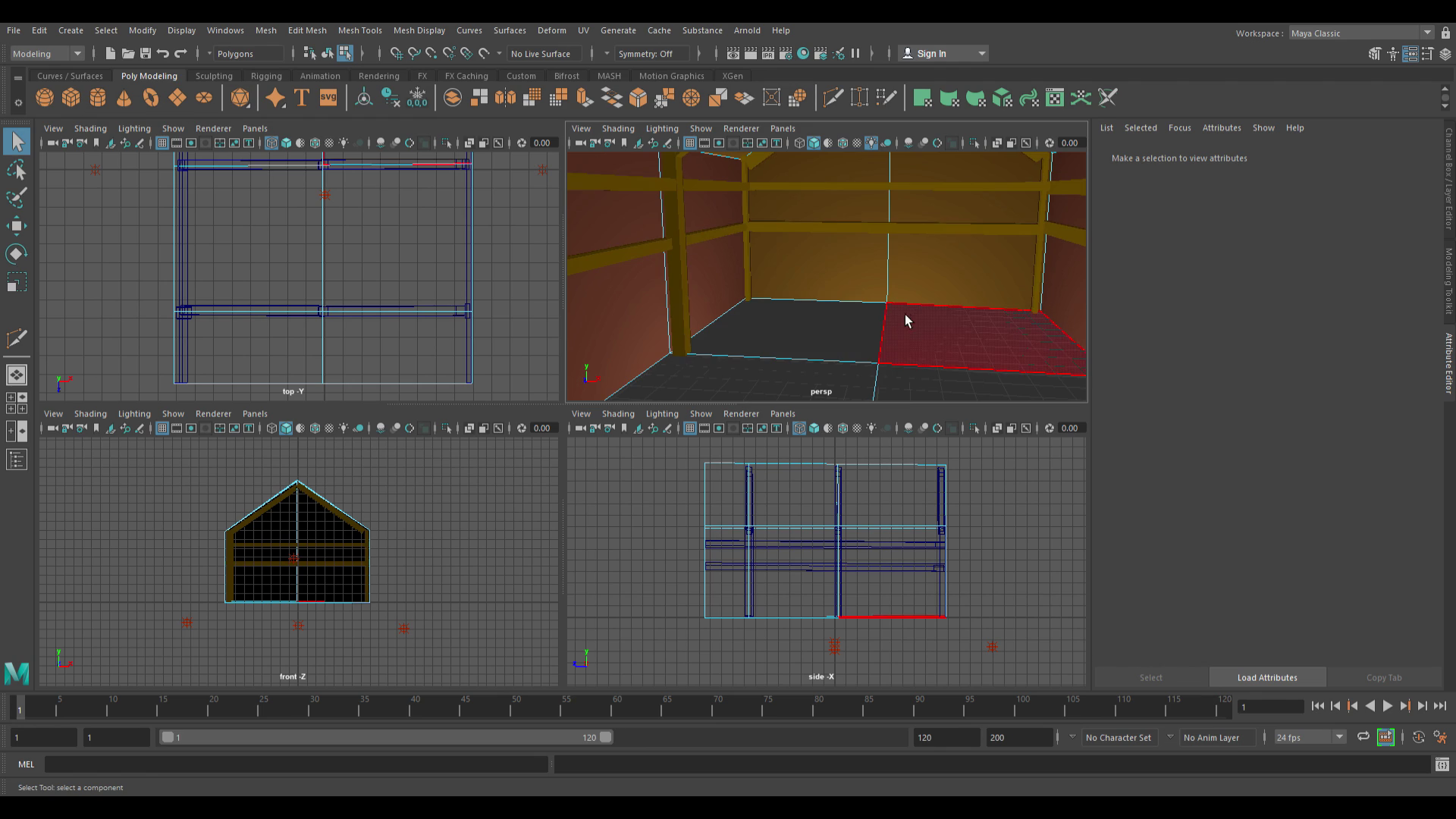
In this case, the video demonstrated that we can cut layers through our house so they can be placed under different colors and will be capable of more features that you can use through the editor.
History and Evolution
The Multi-Cut Tool was introduced in Maya 2014 as part of the Modeling Toolkit. It was designed to simplify the process of creating edge loops and cuts in a 3D model by providing a more intuitive and streamlined workflow. Since its introduction, the Multi-Cut Tool has undergone several improvements and updates, making it more versatile and powerful.
Key Features
The Multi-Cut Tool offers several key features that make it a popular choice among 3D modelers. Some of the most notable features include:
- Edge Flow and Subdivisions: The Multi-Cut Tool allows users to insert edge loops and cuts with edge flow and subdivisions, making it easier to create complex shapes and designs.
- Extract and Delete Edges: Users can extract or delete edges along a cut, providing greater control and flexibility in the modeling process.
- Smooth Mesh Preview: The Multi-Cut Tool can be used in Smooth Mesh Preview mode, allowing users to see the effects of their cuts and edits in real-time.
- Keyboard Shortcuts: The Multi-Cut Tool has several keyboard shortcuts that can be customized to suit the user’s preferences, making it easier to work more efficiently.
Overall, the Maya Multi-Cut Tool is a powerful and versatile tool that can help 3D modelers create complex designs and shapes with ease. Its intuitive workflow and key features make it a popular choice among professionals in the industry.
Key Takeaways
- The Multi-Cut Tool is a powerful editing feature that can be used to split polygons in a variety of ways.
- Understanding Polygons and the Multi-Cut Tool is essential for creating accurate and detailed models.
- Setting up your workspace can help you work more efficiently and effectively when using the Multi-Cut Tool.
Understanding Polygons and the Multi-Cut Tool
Maya is a popular 3D modeling software used by professionals in the film, gaming, and animation industries. The Multi-Cut Tool is one of the many tools available in Maya that is used to cut, slice, and insert edge loops in a 3D model. In this section, we will discuss the history and evolution of the Maya Multi-Cut Tool and its key features.
When it comes to digital design, polygons are a fundamental element. A polygon is a two-dimensional shape with straight sides and angles. It can be as simple as a triangle or as complex as a star-shaped figure. Polygons are used in various design applications, including video games, architecture, and graphic design.
One of the most useful tools for working with polygons is the Multi-Cut Tool. It allows designers to make precise cuts and splits in their polygons, allowing for more intricate and detailed designs. The Multi-Cut Tool is a powerful feature that can take a designer’s work to the next level.
The Multi-Cut Tool works by allowing the designer to draw a line across the polygon, creating a cut. This cut can then be used for splitting polygons into smaller pieces or to create new shapes. The tool is especially useful for creating complex geometries, such as those found in architectural designs.
To use the Multi-Cut Tool, the designer first selects the polygon they wish to edit. They then activate the Multi-Cut Tool and draw a line across the polygon where they wish to make a cut. The tool will automatically create a new vertex at the point where the line intersects the polygon. The designer can then use this vertex to split the polygon into smaller pieces or create new shapes.
Overall, the Multi-Cut Tool is an essential feature for any designer working with polygons. It allows for more precise and detailed designs, making it an invaluable tool for creating complex geometries.
Overview of Multi-Cut Tool
Maya 3D’s Multi-Cut Tool is a versatile tool used for splitting polygons. It allows the user to add edges where more bend is needed in the surface, such as a character’s elbow or knee. The Multi-Cut Tool is also useful for cutting faces, slicing faces, and repositioning cut points.
Accessing the Multi-Cut Tool is easy. It can be found in the Tools section of the Modeling Toolkit window, on the main menu bar by selecting Mesh Tools > Multi-Cut, or on the marking menu by selecting Multi-Cut Tool (Shift + right-click when an object, edge, or face is selected).
The Multi-Cut Tool is particularly useful for splitting multiple polygon faces on one mesh or across multiple meshes in one operation. This can save time and effort when working on complex models.
One of the key benefits of the Multi-Cut Tool is its flexibility. It allows the user to split polygons in any direction, making it possible to create complex shapes and designs with ease. The tool also includes a variety of options for controlling the placement and orientation of the new edges, giving the user precise control over the final result.
Overall, the Multi-Cut Tool is an essential tool for any 3D artist working with Maya. Its versatility and ease of use make it an indispensable part of the modeling process, allowing the user to create complex shapes and designs with ease.
Breakthroughs in Maya 3D’s Multi-Cut Tool
Maya’s Multi-Cut Tool has undergone significant breakthroughs in functionality and user interface, making it one of the most powerful and user-friendly modeling tools available.
Advancements in Functionality
Maya’s Multi-Cut Tool has received several advancements in functionality, including the ability to snap cut points to an edge, constrain to perpendicular angles, and set the Snap Step % interactively. These features make it easier for users to create precise cuts and slices in their models.
Additionally, the tool now allows users to keep lines straight along a curved object, preventing the line from following the curve. This feature is particularly useful when working with complex shapes and designs.
Improvements in User Interface
Maya’s Multi-Cut Tool has also received improvements in user interface, making it more intuitive and user-friendly. The tool can be accessed through the Tools section of the Modeling Toolkit window, the main menu bar, or the marking menu. This allows users to choose the method that works best for their workflow.
The marking menu, in particular, has received significant improvements, allowing users to access the Multi-Cut Tool by selecting it from the marking menu. This feature saves time and streamlines the modeling process.
In conclusion, Maya’s Multi-Cut Tool has undergone significant breakthroughs in functionality and user interface, making it a powerful and user-friendly modeling tool. These advancements have made it easier for users to create precise cuts and slices in their models and have streamlined the modeling process.
If you are into more projects including Maya 3D that we made for the blog, then I suggest you check out our main blog categories and some extra stories on our blog.
Check out Maya today and special thanks to AngeloJacksonED for supplying the video on Vimeo. More Maya Content to be on the Blog soon.